Import your first licenses
Start with a few records so you can check the result before importing your whole spreadsheet. This walkthrough uses an installed instance; CSV import processing is unavailable in the hosted demo.
Already familiar with importing? Go to the mapping and import reference for update rules, Flexera mappings, custom fields, and maintenance exceptions.
1. Download the template
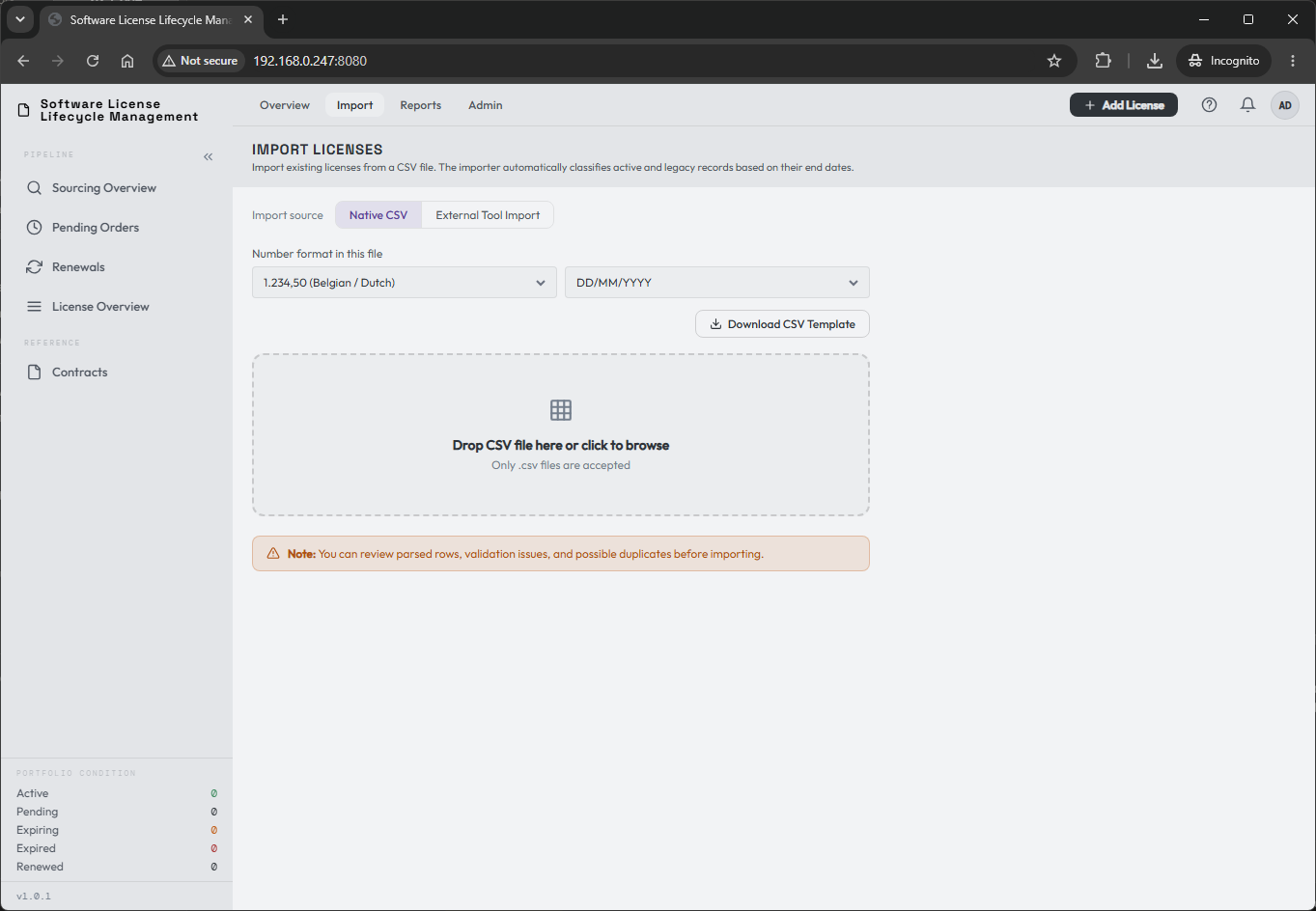
Open Import, choose Native CSV, and select the number and date formats that match your file. Choose Download CSV Template.
2. Add a few records
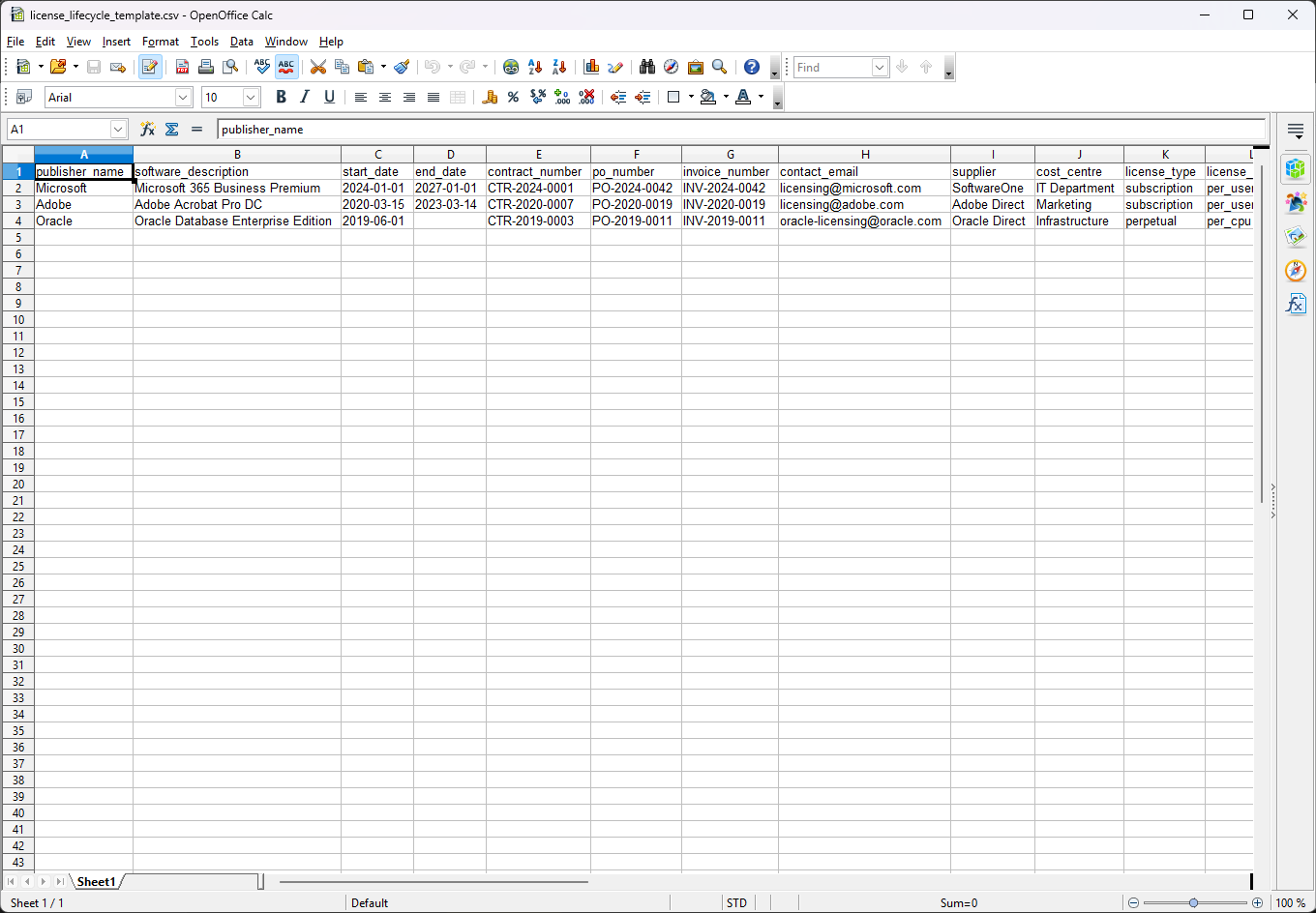
Use the example rows to understand the columns, then replace them with a small sample of your own licenses. Keep the headers. Check publisher, description, license type, quantity, currency, price, and coverage dates before saving as CSV. Remove any example rows you do not intend to import.
Match the selected number format to the values in your file: 1,234.50,
1.234,50, or 1 234,50. ISO dates are accepted, as are dates in the selected
format. These choices apply to this import, not your account preferences.
Have an existing spreadsheet with different headers? Choose External Tool Import instead, upload the CSV, and map its columns. The mapping example shows this alternative.
3. Upload and preview
Upload the CSV and review the preview before confirming. Check that dates, quantities, and prices have been interpreted correctly. Use Columns to hide fields temporarily if the preview is too wide; this does not change the data.
Check whether you are creating or updating
A file with an LT Ref column can update a matching existing license. Review the auto-enabled update option and the preview's row actions. Without a matching reference, importing the same file again can create duplicates. See update rules.
4. Resolve warnings and import
Review flagged rows and reference-data suggestions before confirming. Correct source values, choose the appropriate reference match, or skip a row you cannot resolve yet. A maintenance row may need a parent license; follow the maintenance rules if one is flagged.
Acknowledge applicable warnings, check the number of rows to be imported, and choose Import. Read the completion summary for imported, updated, skipped, or failed rows before retrying anything.
5. Inspect the result
Open License Overview, find one of the imported records, and open its details. Check its dates, quantity, cost, ownership, and any warnings against the source file.
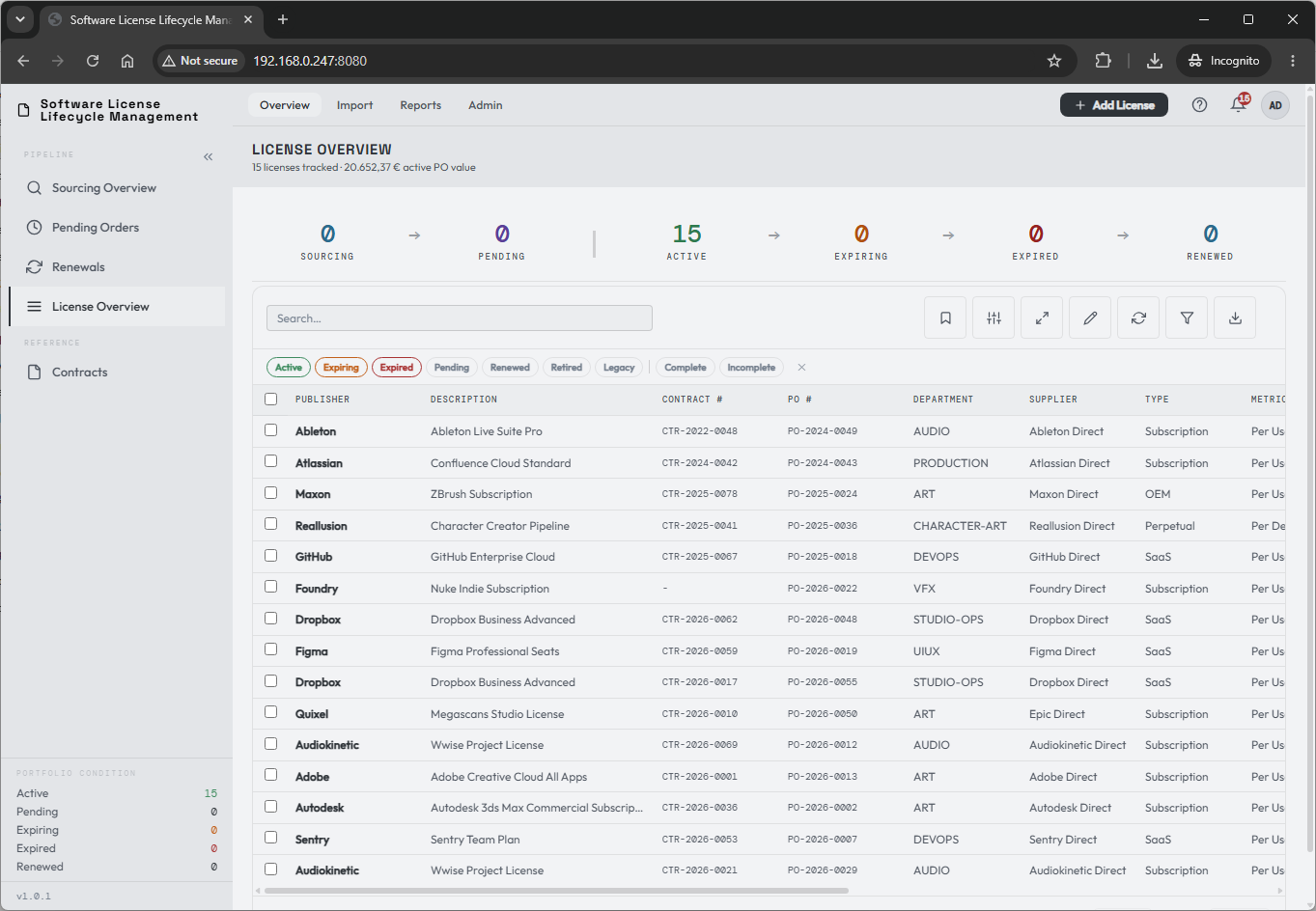
Once the sample is correct, repeat the process with the remaining records.