Renew an expiring license
Follow one expiring license through sourcing, a pending order, and a new term. This walkthrough uses an installed instance and an editor or admin account. For a browser-only example, use the demo walkthrough.
For this example I changed the expiration date of our Ableton license so that it falls 28 days from now — inside both the "expiring within 30 days" alert window and the renewal-action window.
The renewal workflow appears
Once a license is inside the renewal-action window, the renewal workflow activates. An Initiate Renewal button appears in the License Details panel, and the license shows up in the Renewal Workbench. Administrators can configure this action window independently from the expiry alert window; until they do, it inherits the expiry alert value so existing installations behave as before.
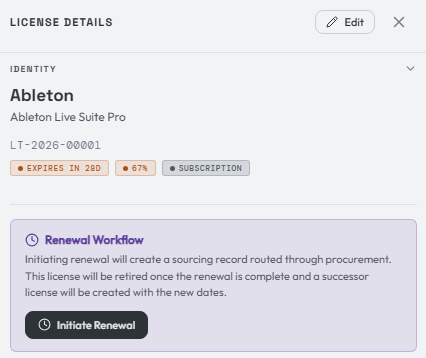
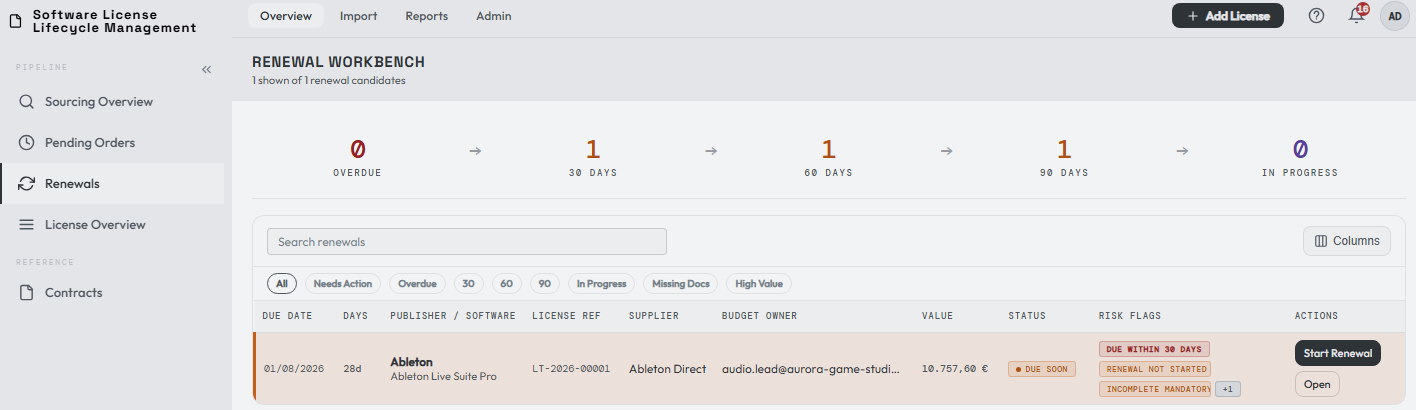
From either view you can start the renewal, provided all conditions are met.
A license with an unhandled notice date inside the workbench window also appears there, even when its end date is further out. When the notice date comes first, the workbench lists the row by that date and marks it with an N. See notice deadlines.
The renewal area in License Details has a close button if you want it out of the way while you review the record. It comes back the next time you open the license.
Already bought the next term? Link an existing successor instead of creating another purchase.
A budget owner is required
Assign a budget owner before initiating renewal procurement. Linking an already-purchased successor does not require one.
Initiate the renewal
Press Initiate Renewal to start procurement work. The license gains a Pending Renewal workflow state while its current coverage remains Expiring (or Expired if the end date passes). Starting work does not extend coverage.
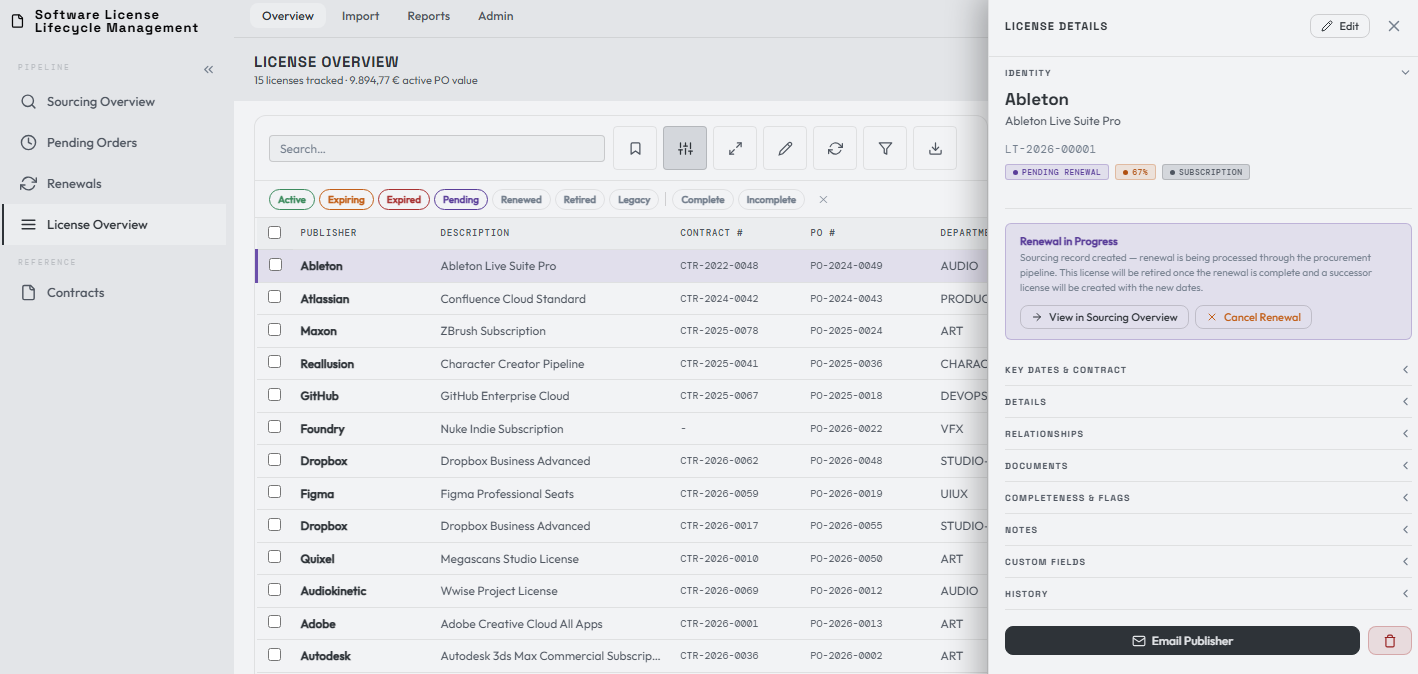
At the same time, a new record is created in the Sourcing Overview page.
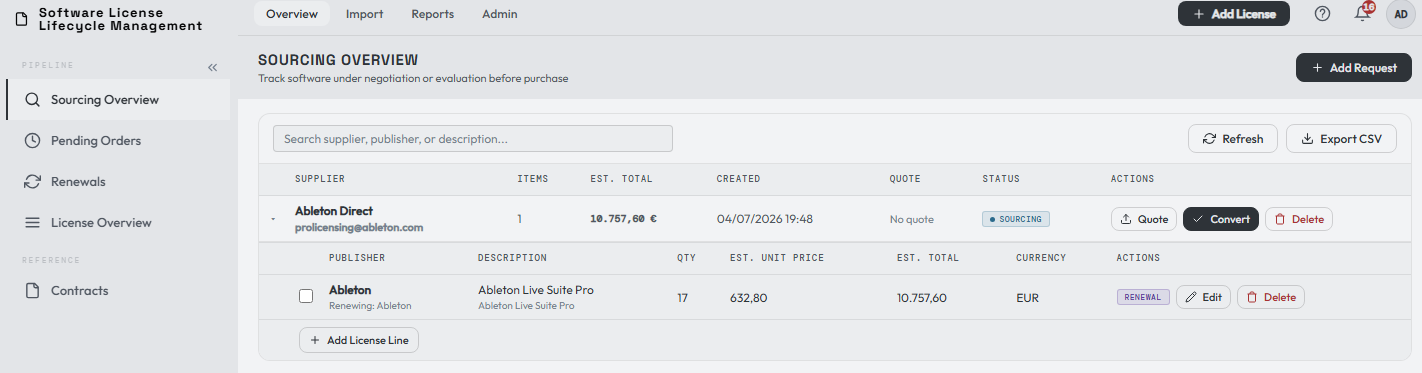
Source and quote
The sourcing record is pre-populated with information from the previous license. When you receive a quote from your supplier, update the record with the current figures and attach the quote to the request. Once procurement work is ready to track, convert it to a pending order.
For maintenance classification and custom-field behavior, see information carried into the next term.
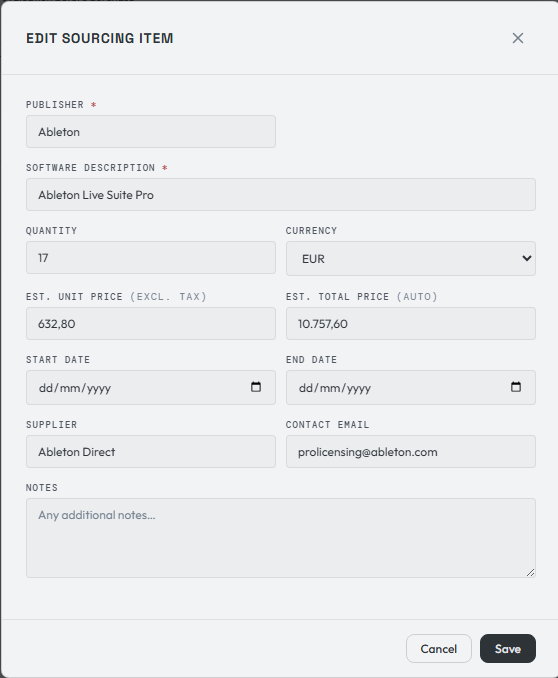
When converting, you can attach the item to an existing pending order or create a new one. If the formal PO number is not available yet, use a procurement reference or the generated Pending Order ID while the PO is being created. You must add the real PO number before converting the pending order into active licenses.
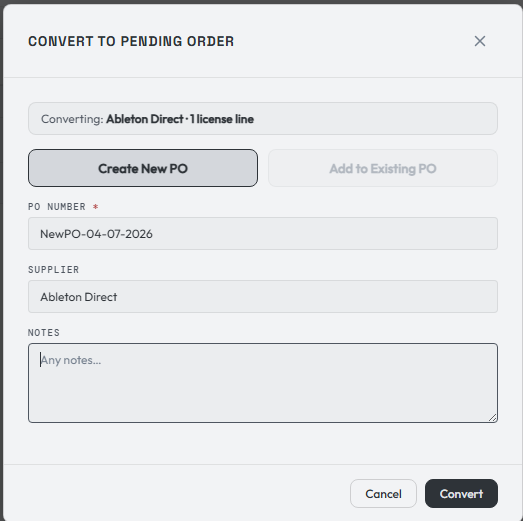
Pending orders
Once converted, the item clears out of sourcing and enters the Pending Orders phase.
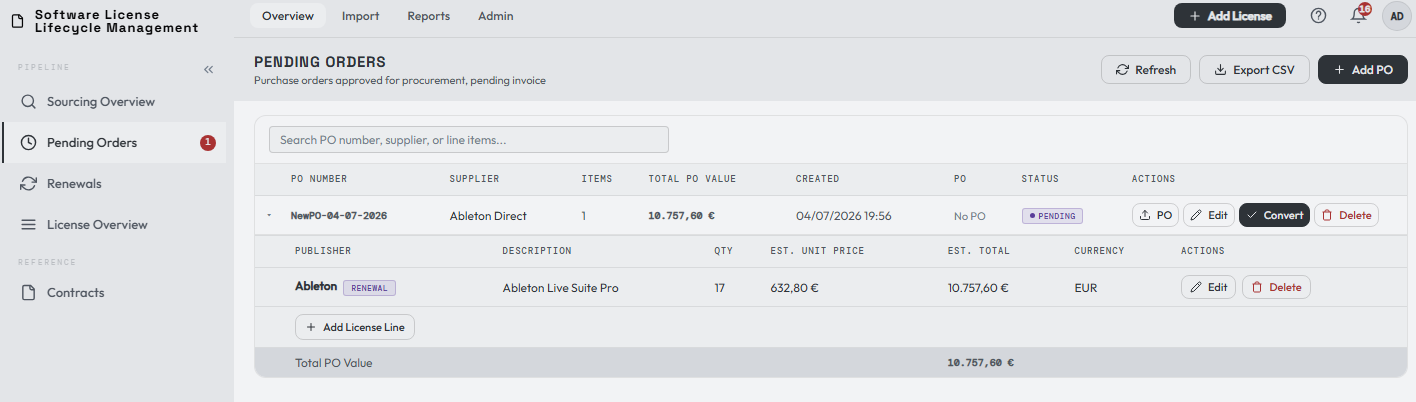
Here you can still edit the order or the line items in case of a last-minute adjustment, add the real PO number if it was not known earlier, and attach the official PO document when available. For this example we'll convert it as-is into a new active license.
You get a chance to review the purchase and upload the received invoice, if you already have it. Confirm & Renew License completes the action.
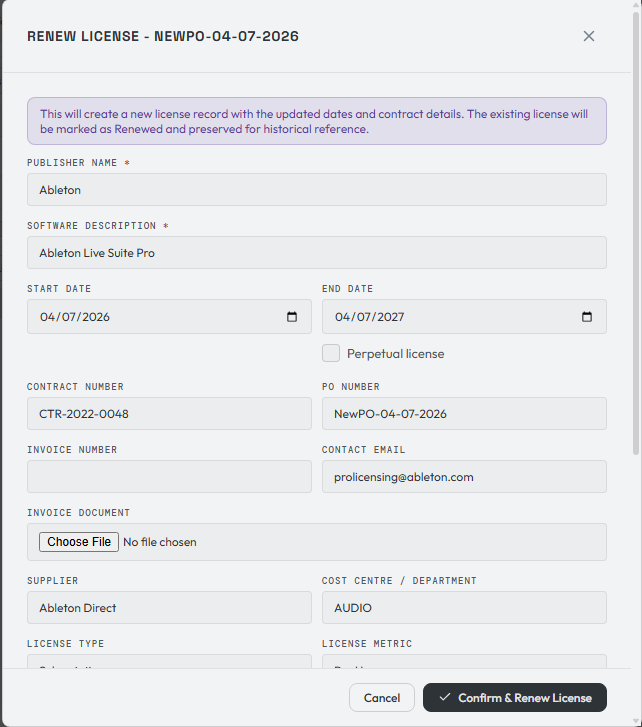
The lifecycle closes
The successor becomes active on its own start date. The previous record continues to show its date-based coverage state through its end date and is shown as renewed once its term has ended and successor coverage has begun.
Looking the license up in the License Overview, you'll see the historical link back to the previous term via View Previous.
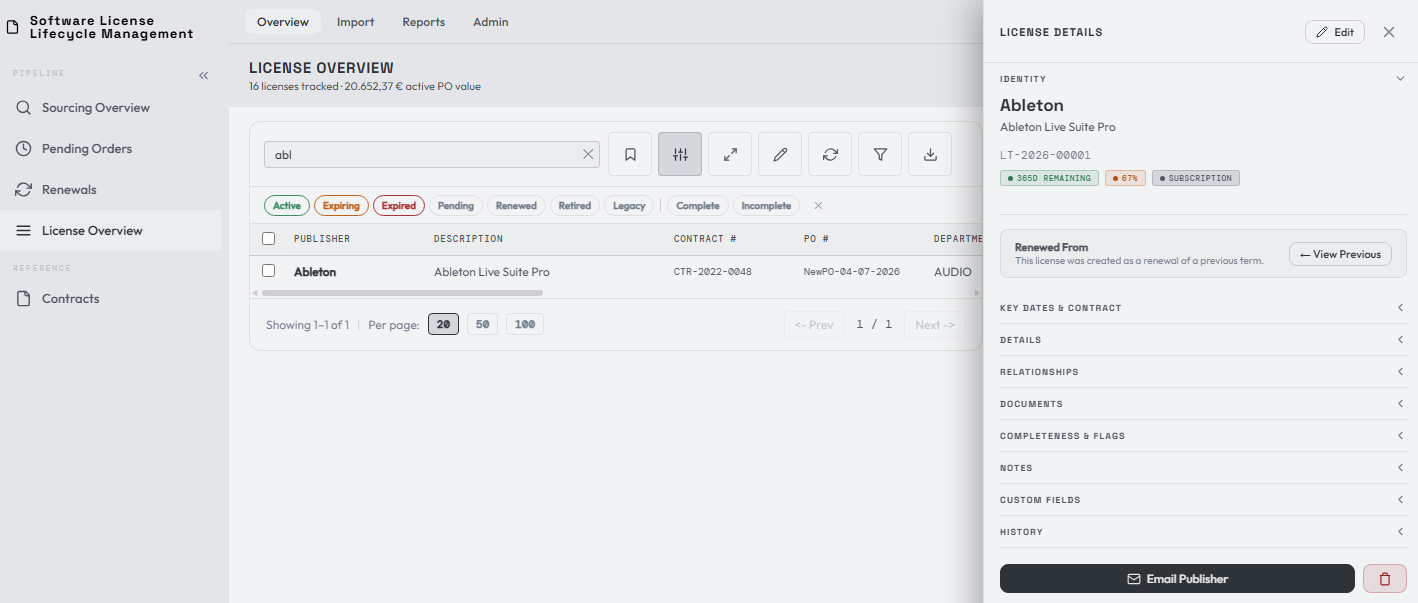
Open History to follow the procurement trail back to the previous term. Completed sourcing and purchase orders remain available in their History views. See renewal rules and alternatives for LT references, coterm renewals, maintenance exceptions, coverage gaps, renewable Service and Other records, and renewing maintenance that came included with a perpetual, OEM, or freeware license.