Dashboard & key views
You've imported your licenses and set up a working renewal process. Now let's walk through the License Overview dashboard and the features that make it your day-to-day home.
By default the license table shows quite a few columns — realistically you won't always need all of them.
Arrange your columns
You can drag any column to a position you prefer and remove the ones you don't need. Hover your mouse over a column name and an X appears — click it to hide that column.
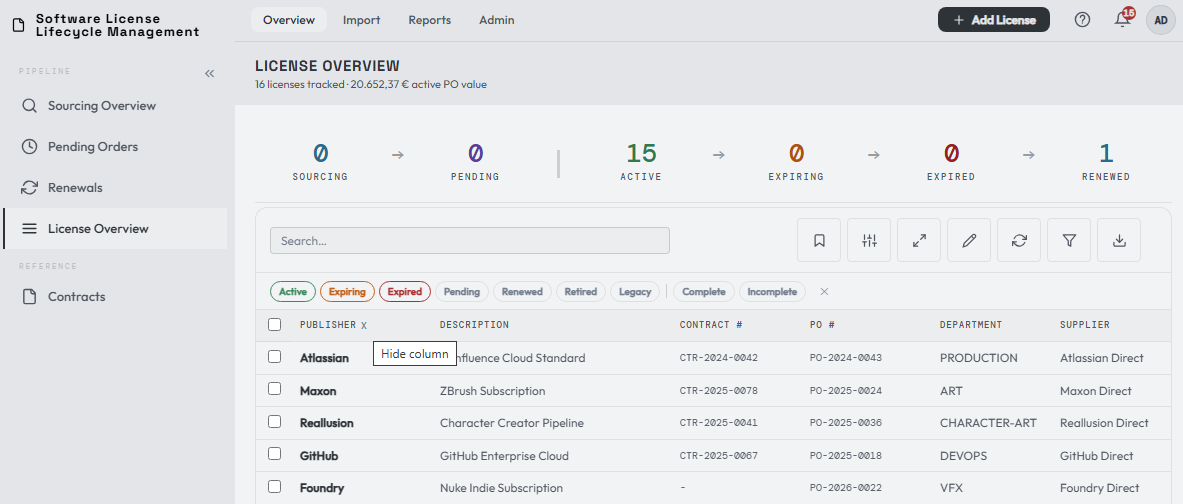
The toolbar's Column categories button also lets you show or hide Standard, Advanced, Computed, and Custom Field columns without leaving the dashboard.
Save your views
Once you've arranged the table, save it using the Saved Views menu (the bookmark icon in the toolbar):

Give the view a name and save it:
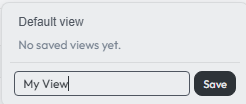
In this example I arranged the columns for a quick overview and saved them. You can keep multiple views and build your own functional ones — for example a view that shows only Subscriptions or Perpetual licenses, or one that focuses on value. Choosing Default view reverts to a sensible built-in layout (note this is not the full list of columns).
The full column list
Your personal user settings hold a large list of 35 categories, each of which can be turned into its own column in the list view. Some of these can also be toggled on or off for the License Details panel.
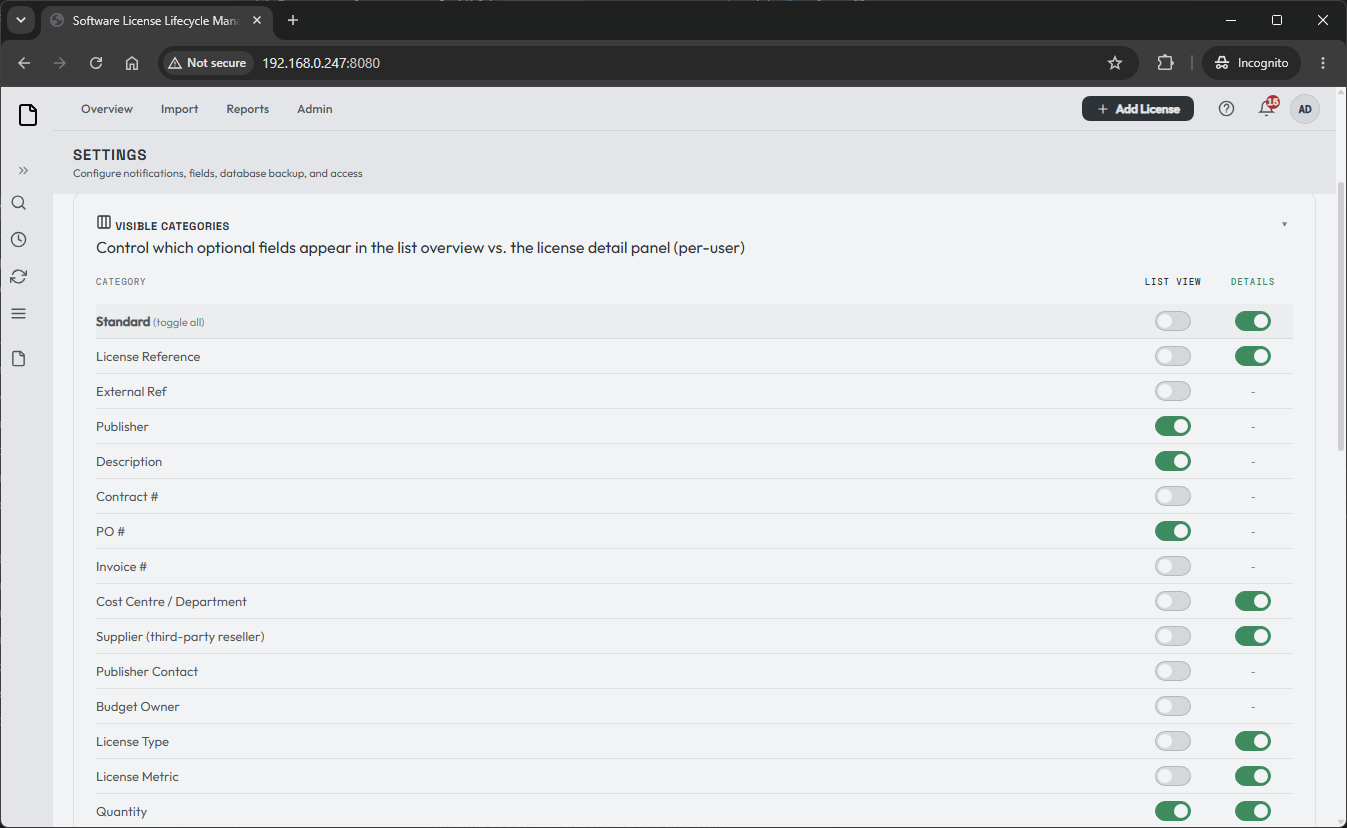
The dashboard toolbar exposes the list-view side for quick view building. My Settings remains the full editor, including fields that can also be toggled on or off for the License Details panel.
Tip
If you ever lose track of a column, or want to experiment with your views, this settings page is the place to do it — nothing is permanently gone, just toggled off.
Sort and filter the displayed values
Click a sortable column header to switch between ascending and descending order. Sorting follows what the column means on screen: dates and timestamps use chronological order, Total PO Value uses the whole PO value, Expiration follows lifecycle urgency, and number, date, boolean, and text custom fields use their declared type. Missing values stay at the end in both directions. A header that has no supported sort value remains draggable but does not show sort behavior.
Turn on Show column filters to filter individual displayed fields alongside the normal search and status filters. Creator, quantity, notice-date, and custom field filters follow the same display values used in the table. Numeric filters use your selected number format.
Use Column Categories to choose Standard, Advanced, Computed, and Custom Field columns, including the document-count Docs column. Bulk selection is limited to the displayed page and is cleared when filters or pagination hide the selected rows. Search, filter, saved-view, and page-size changes return the table to a valid page instead of leaving an empty out-of-range view.
Group the list
Click the Group columns button in the toolbar to open the grouping strip above the table. Drag a column header onto the strip, or use + Add grouping, to group the list by PO #, Publisher, Supplier, Cost Centre, Type, Start year, End year, Status, Currency, Contract # or Budget Owner. While the strip is open, the headers you can group by are underlined; dropping any other header shows a short message instead. Add a second column to nest one grouping inside the other (for example PO # then Publisher). Dropping a header on another header still reorders the columns.
Groups start collapsed. Click a group header, or press Enter or Space on it, to open it; Expand all and Collapse all are in the strip. Each header shows the line count ("3 of 5 lines" when filters hide some), the line total per currency, and the earliest end date of the live lines. A PO # group also shows the Total PO Value, with a warning when a manual PO total differs from the sum of the PO's lines.
While the list is grouped it scrolls instead of paging, and the select-all box selects every line that matches the filters. Saved views keep the grouping, and CSV export stays a flat list in grouped order.
The toolbar buttons

The leftmost icon is the Saved Views bookmark covered above. The remaining buttons, from left to right:
| Button | What it does |
|---|---|
| Toggle pipeline | Hides/shows the pipeline section at the top of the page. Not saved. |
| Full view | Hides the pipeline section and collapses the side menu for a more full-screen view. Saved. |
| Inline Edit | Quick-edit certain license details without opening the License Details panel. |
| Refresh view | Refreshes the current view. |
| Column categories | Shows or hides groups of list columns while you build a view. Changes are saved to your personal settings immediately. |
| Group columns | Opens the grouping strip, where you group the list by one or two columns. |
| Show column filters | Enables the advanced filter, which can be combined with your saved views. |
| Export CSV | Exports your license list — choose between your current view or the full data set. |